FLUX Images · FLUX Video · AI Music
Flux Ideas AI Studio
Create with FLUX AI image models in one studio, turn your ideas into AI video, and edit your work with ease.
Create AI images from text, turn photos into videos, and generate music.
Create for freeExplore FLUX AI image models
Pick a FLUX AI model for your next image. Start from a prompt, refine a photo with FLUX Kontext, or compare other image and video models on Flux Ideas.
FLUX Image and FLUX Video are creative tools on Flux Ideas. Video uses models such as Seedance, Veo, Kling, and Wan, and the studio shows the model you pick.
Compare all FLUX AI image and video modelsFLUX AI tools: image, video, music, and editing
Generate images with FLUX AI, then explore video, music, and editing tools from other model families in the same workspace.
Generate and edit striking images with leading AI models worldwide
Pick an image model, start from a prompt, or upload a reference and keep editing.
Explore FLUX AI image modelsLeading AI models in one creative space
On Flux Ideas AI, pick the right model for each task without juggling subscriptions or switching tools.
Image Models
View all
GPT Image 2
Text rendering

Seedream 5.0 Pro
Professional
Seedream 5.0 Lite
Fast and flexible
Seedream 4.5
Cinematic style

FLUX 3 Image
High-resolution images

Nano Banana
Photorealistic
Nano Banana Pro
Professional quality
Nano Banana 2
4K

Midjourney
Artistic style
FLUX Kontext
Image refinement
GPT-Image-1
Versatile

Grok Image
Creative imagery
GPT Image 2.5 Flare
Quality tiers
GPT Image 2.5 Sunburst
Detailed creation
Seedream 4.0
Multi-image creation
Nano Banana 2.1
Multiple references
Z-Image LoRA Pro
Rich detail
Z Image LoRA
Style exploration
Flux 2
Pro / Flex
Video Models
View allGrok Imagine Video 1.5
Image animation
Wan 3.0
Multimodal references
Wan 2.7
Flexible duration
Wan 2.7 LoRA
First-frame guidance
Wan 2.2 LoRA
Start and end frames
Wan 2.5
Animation
Wan 2.6
Reference and Flash
MiniMax H3 LoRA
Cinematic scenes
Seedance 2.5
Draft workflow
Seedance 2
Multimodal creation
Seedance 2.0 Fast
Fast iteration
Seedance 2.0 Mini
Lightweight creation
Seedance 1.5 Pro
Fast
Veo 3.1
Multiple image references

Kling 4.0
Multimodal scenes
Kling 2.6
Lip sync
Hailuo 2.3
Cinematic style
Kling 2.5
Image-to-Video
Runway Gen-4 Turbo
Animate images
FLUX 3 Video
Video extension
Gemini Omni
Multimedia references
Hailuo 2.3 Fast
Fast image animation
Kling 3.0 Omni
Multi-mode creation
Kling 3.0 Std
Motion control
Kling 3.0 Turbo
Fast generation
Wan Animate LoRA
Motion transfer
Wan 2.2 Animate
Character animation
Wan 3.0 Video LoRA
Reference guidance
Wan 3.0 Video Pro LoRA
High-resolution video
Start multimodal creation and editing with Wan 3.0
Create or edit videos up to 30 seconds from text, first and last frames, or multimodal references, then compare the professional Wan options on the next run.
Try Wan 3.0Generate, edit, animate, and enhance your work with AI
From AI image and video workflows to AI music, editing tools, and upscaling, all on one platform.
Text to Image
Create infographics, multilingual marketing assets, product shots and portraits with Seedream 5.0 Pro. A reference image can guide the edit.
Generate image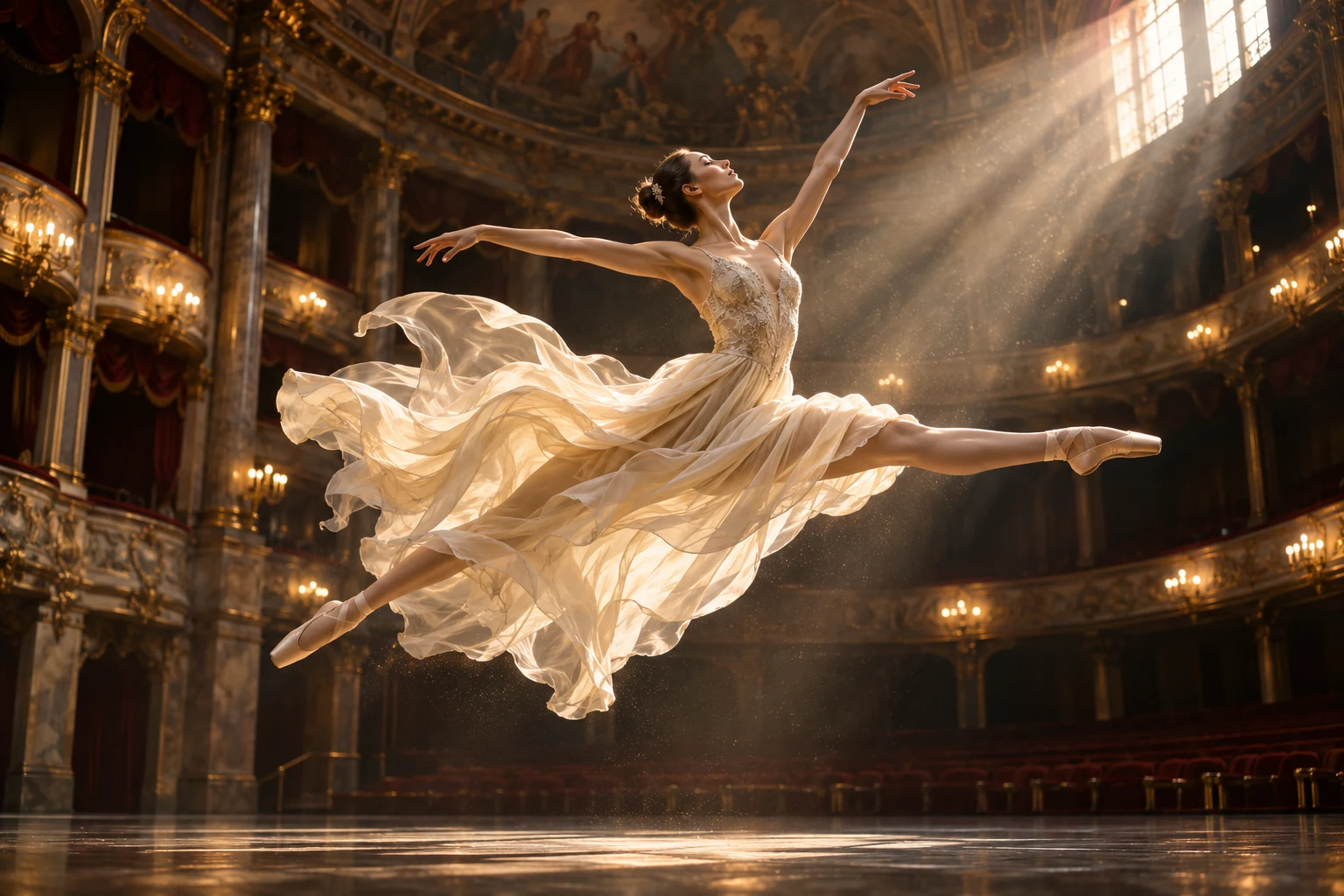
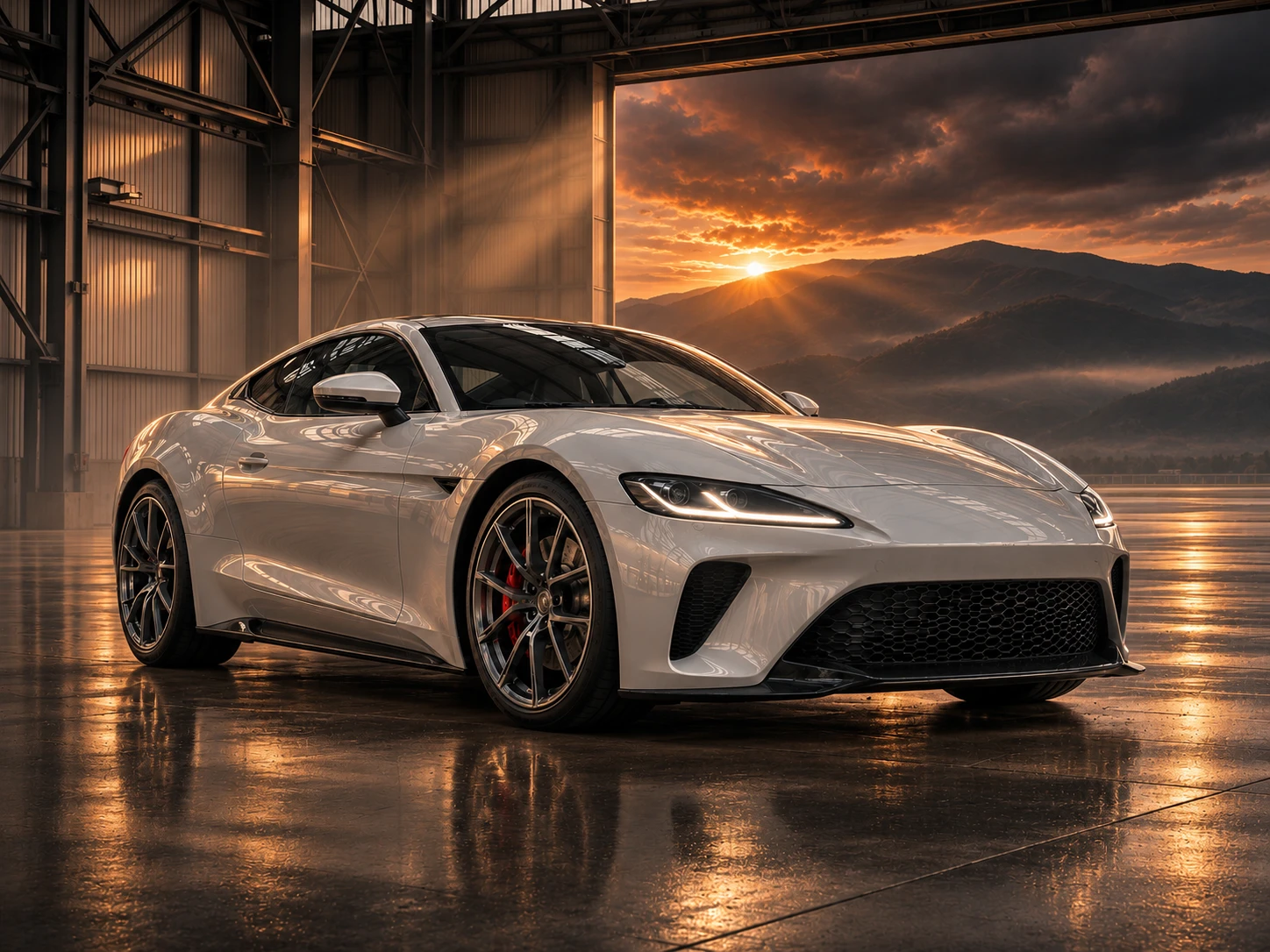
Image editing and style transfer
Give Seedream 5.0 Pro references for features, colors, materials or layout. Say clearly what should change and what should stay.
Edit image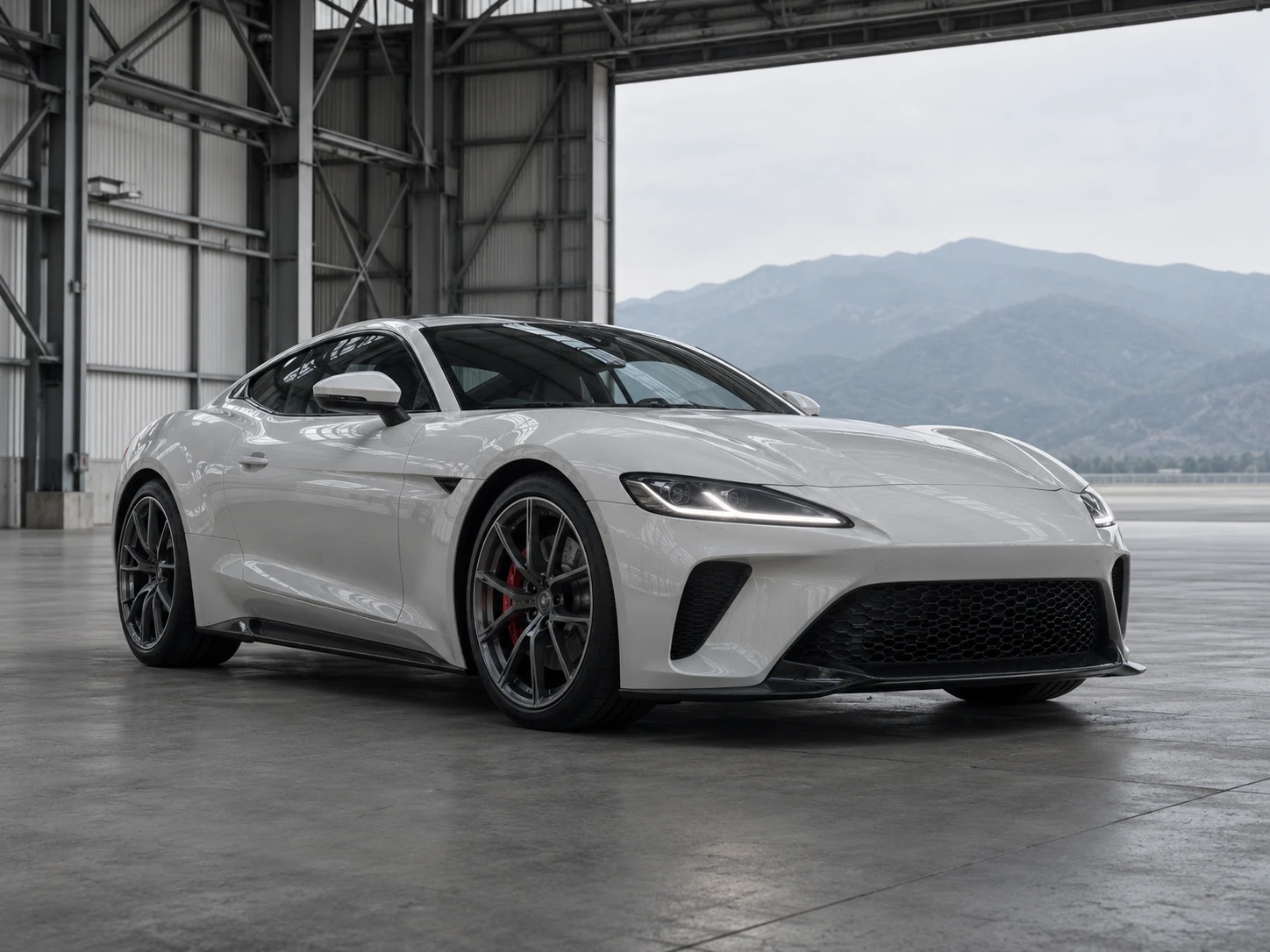
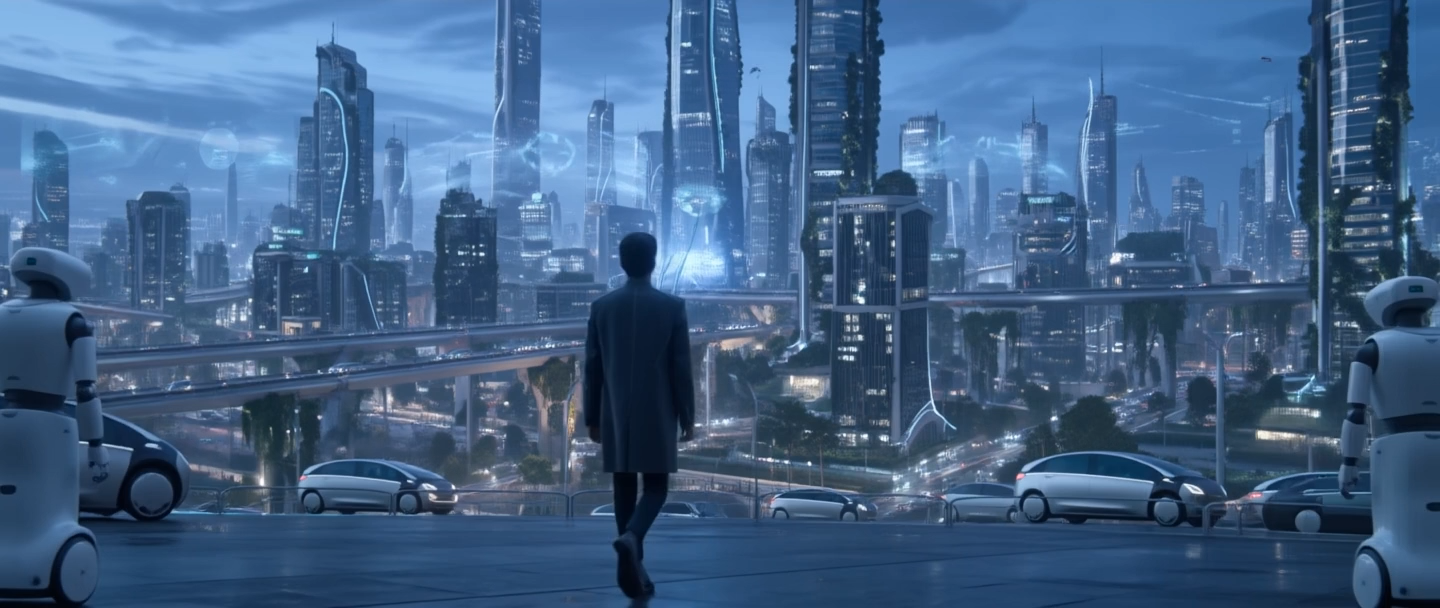
Text to Video
Enter a prompt to create cinematic video with synced audio, professional camera work and realistic motion. Choose among Veo, Kling, Seedance, Wan, Runway and more.
Generate videoImage to Video
Turn a still image into cinematic motion. Product shots, illustrations and AI images can gain natural movement and sound.
Animate imageHD upscaling
Improve image and video quality with AI. Upscale detail and raise video resolution toward professional 4K.
Upscale now
40+ image templates
Start from templates: 3D models, Ghibli style, designer toys, meme makers, magazine covers and more. Upload a photo and get a result.
Browse templates
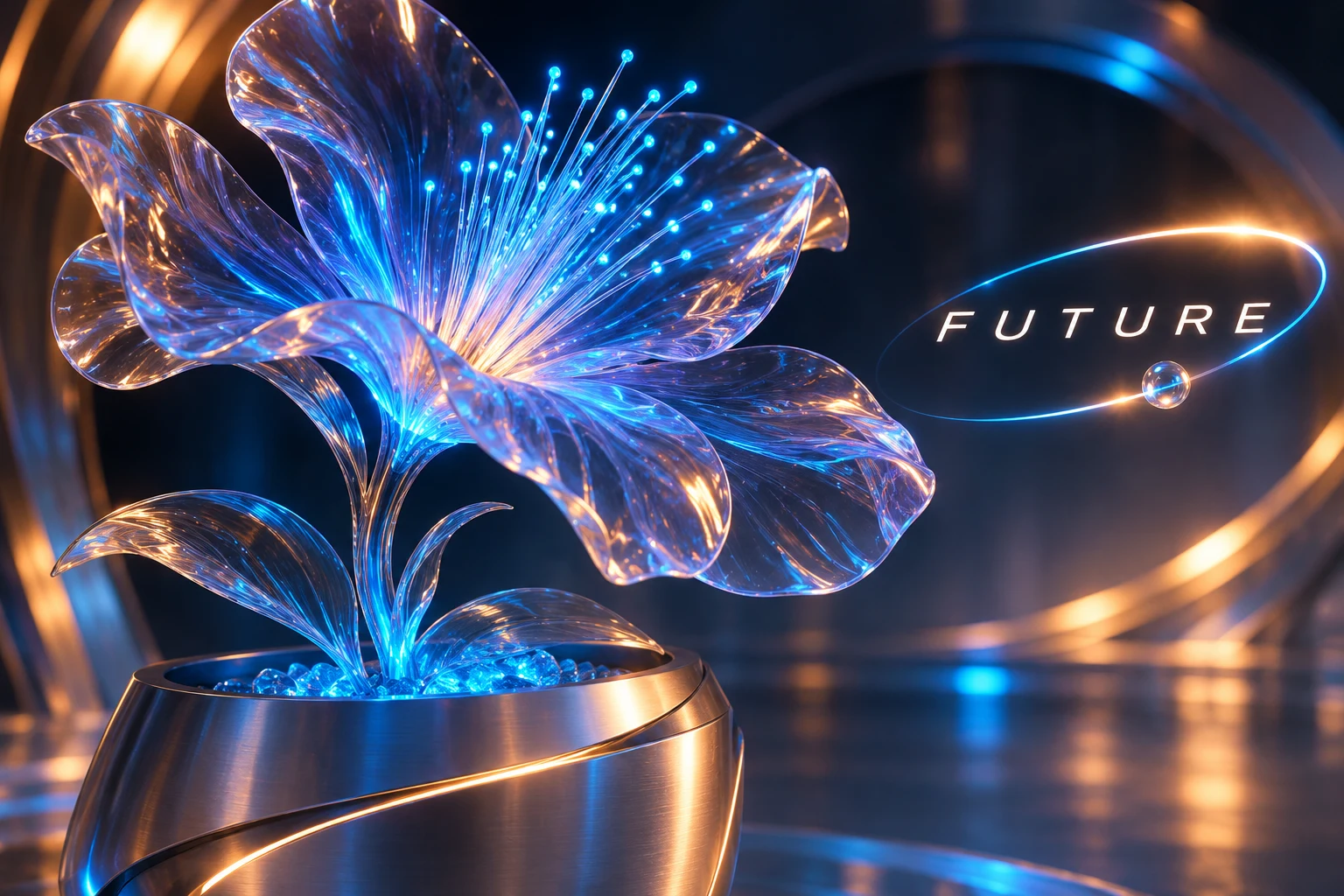
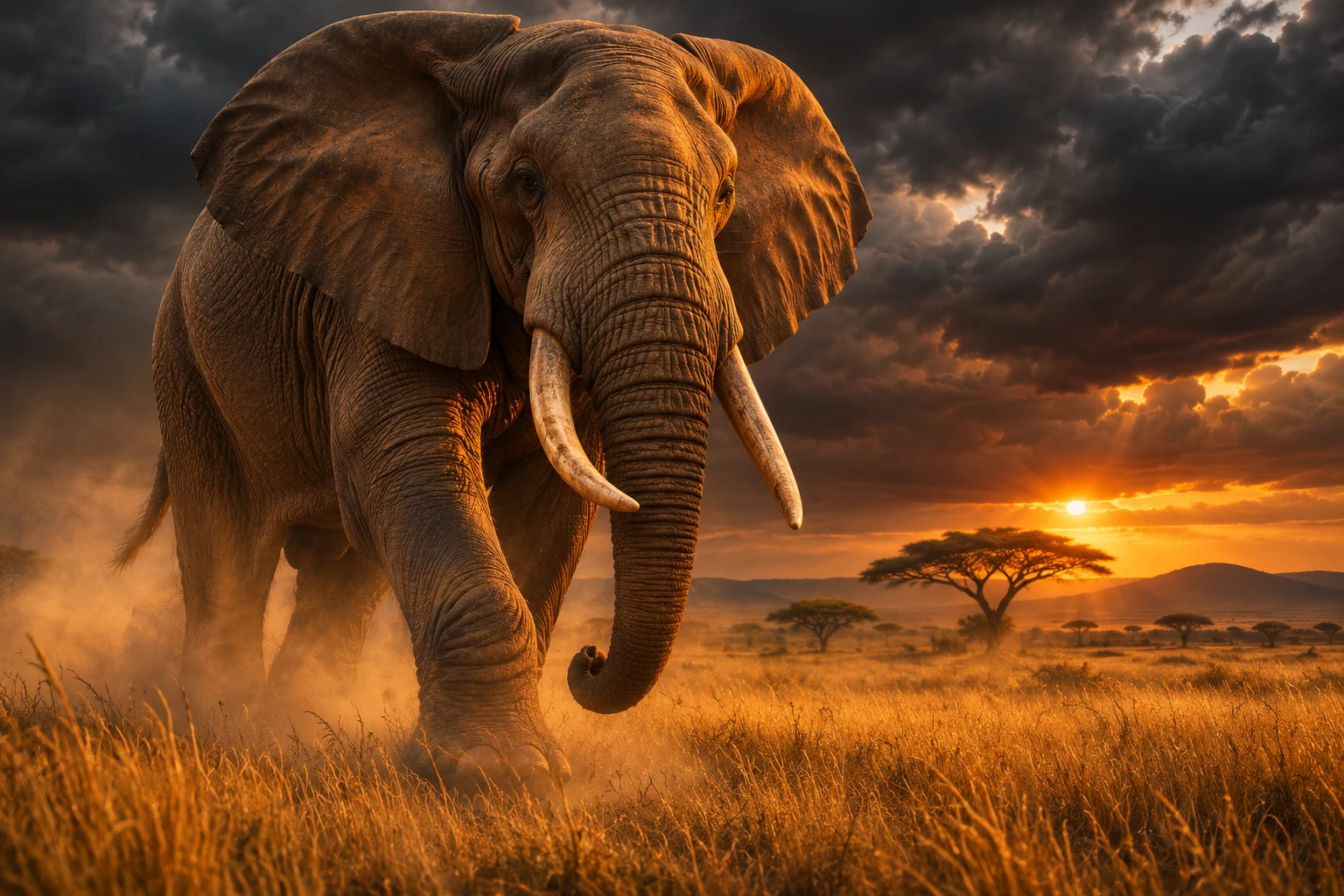
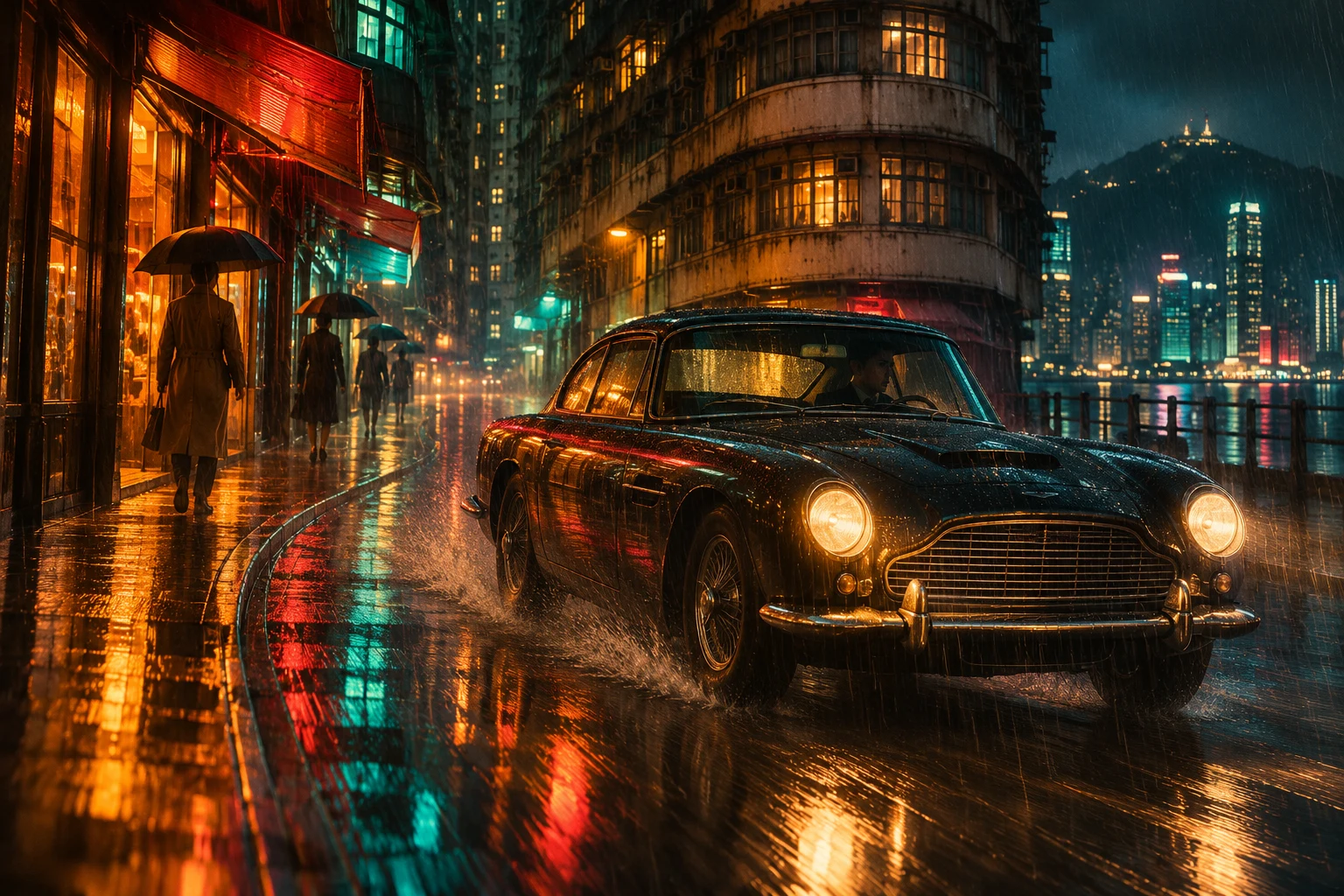
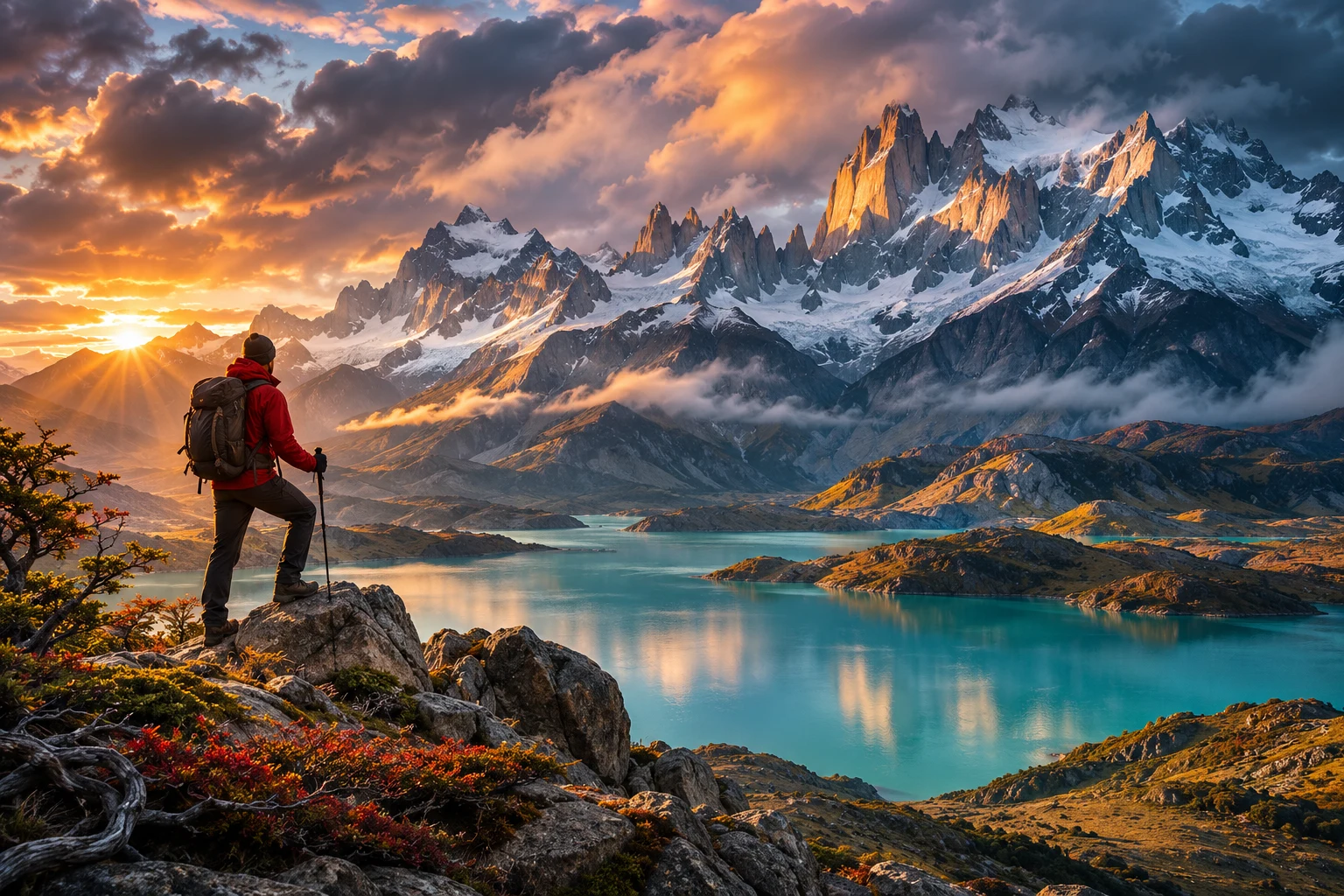
Explore what is possible
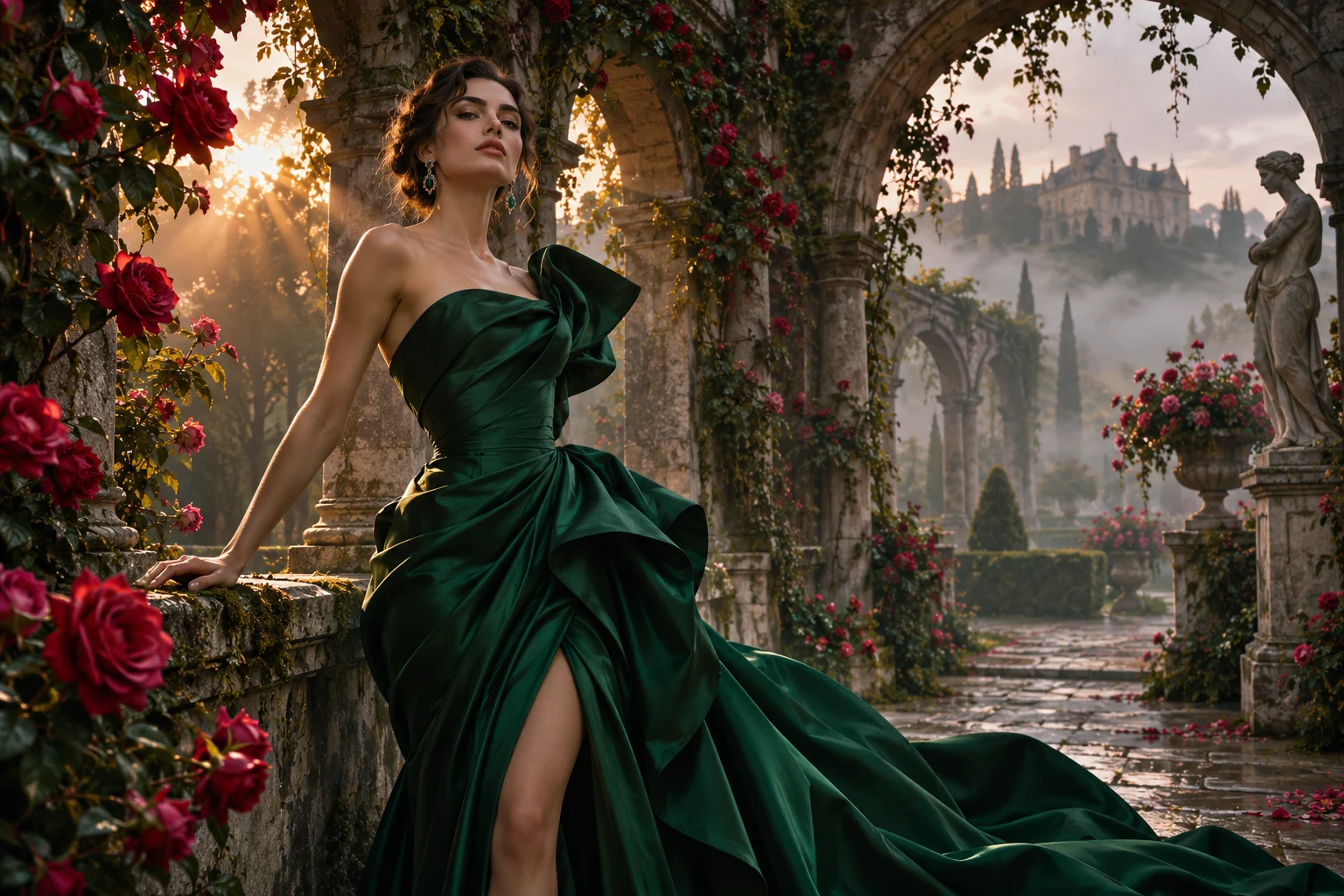
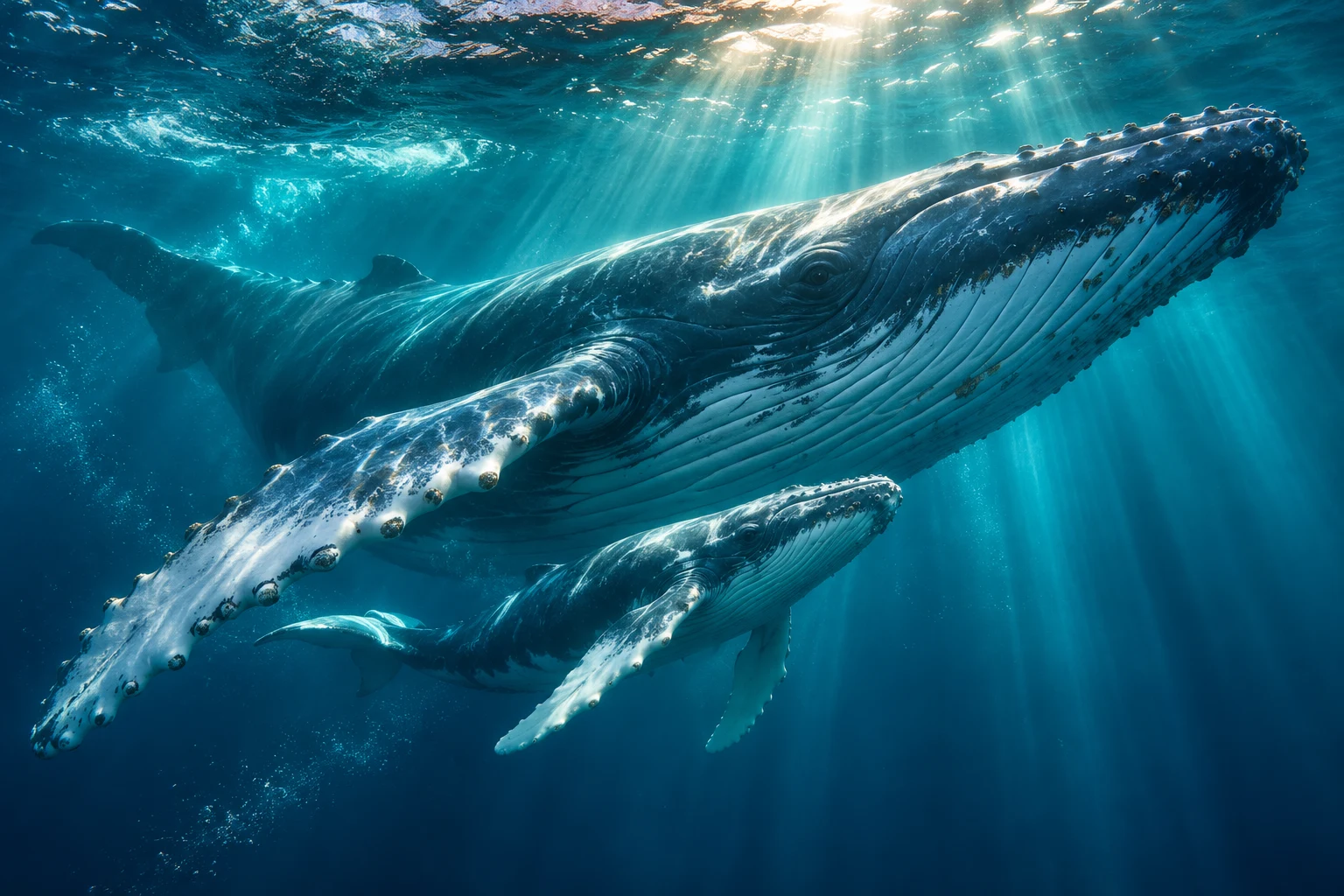
See work made on Flux Ideas AI, from photoreal images to cinematic video.

Why use FLUX AI?
Combine FLUX AI image generation with video, music and editing. Each task has a clear model to choose, so the workflow stays clear.
FLUX AI and more
Compare FLUX AI with image models from OpenAI, Google, ByteDance and others in one workspace. Each model keeps its own tools and settings.
Fast and flexible
Generate with FLUX AI, refine in the editor, then animate with a separate video model. Time depends on the model and server load.
Simple FLUX AI credits
Check the credit cost before you submit a FLUX AI task. Eligible new users can try one free image or video. Buying credits does not require a subscription.
Developer API
Connect FLUX AI and other supported models to your app through the API. Read each model API document for inputs and options.
Trusted by creators worldwide
Join professionals and creators using Flux Ideas AI to generate images, make videos and power their creative workflow.
Flux Ideas AI became our one place for visual work. We make product images with Midjourney, promo videos with Veo and finish every edit in FLUX Kontext without leaving the platform.
Alex Chen
Digital marketing director
Having 29+ models in one place is a real advantage. I shoot products with Seedream, make video ads with Seedance and print catalogs with the upscaler. Conversion rose 40%.
Sarah Rodriguez
Store owner
I generate images with FLUX and Nano Banana, then turn them into short videos with Kling and Wan. Credits are pay as you go. My audience loves the variety.
David Kim
Content creator
As a designer I was skeptical of AI platforms. The model range and precise editing tools in Flux Ideas AI changed that. It handles concept art through to finished assets.
Emma Thompson
Graphic designer
The video models are strong. Veo feels cinematic, Seedance is very fast and Wan moves people naturally. One credit system covers every model, which saves time and money.
James Wilson
Video producer
Our whole team moved to Flux Ideas AI. The API fits our workflow, and the model range means we can find the right tool for any task. It is the best AI platform we have used.
Lisa Park
Creative agency lead
FLUX AI questions
Learn how to choose a FLUX AI model, write prompts, check credit cost and move from images into video or editing.
What is FLUX AI?
Which FLUX AI model should I choose?
How do I generate an image with FLUX AI?
Can FLUX AI edit an existing photo?
Can FLUX AI generate video?
Can I try FLUX AI for free?
How many credits does one FLUX AI generation use?
What makes a useful FLUX AI prompt?
Can I use FLUX AI images commercially?
Can developers call FLUX AI through the API?
Can I use FLUX AI together with other models?
Where do I manage FLUX AI privacy settings and get help?
Start your next FLUX AI project
Explore FLUX AI image models or open the default image and video tools. Create, compare and refine your work in Flux Ideas.
Choose a model, review the settings and credits, then start creating.